Live Trading Mode
What it is
Live Trading Mode connects a saved Strateda strategy to your MetaTrader 5 account for real execution. The strategy logic runs on Strateda's cloud servers, which monitor the market continuously and generate trade signals on each new candle. Those signals are sent to the Strateda Expert Advisor running in your MT5, which executes them as real orders through your broker.
This architecture splits the work: Strateda's cloud handles strategy logic and signal generation, while MT5 handles order execution through your broker.
Live strategies can be tested on a demo account before using real capital. A demo account simulates real execution costs, slippage, and spread — making it ideal for validating that live performance matches your backtest expectations before committing to a live account.
Plan requirements:
- Pro — 2 live strategies (2 EA connections)
- Premium — 4 live strategies (4 EA connections)
How to access it
Live strategy activation is done from the Stored Strategy List in the View Panel. Every saved strategy appears as an entry in this list with a set of action icons — including a play/pause button.
See The Strategy Panel & View System for a full description of the Stored Strategy List and its icons.
To start a live strategy:
- Set the correct navbar region first — EA connections are region-scoped. Before activating a strategy, confirm the navbar dropdown matches the region your EA is configured to connect to. If your EA is set to EU Central, the navbar must be EU Central — otherwise the EA will not appear in the account selector. See Server Selection for the full explanation of how regions work.
- Ensure the Strateda EA is installed, connected, and showing Connected status in MT5. See Expert Advisor Setup.
- In the Stored Strategy List, locate the strategy you want to deploy.
- Click the play button on that strategy's row.
- The Activate Strategy confirmation popup appears:
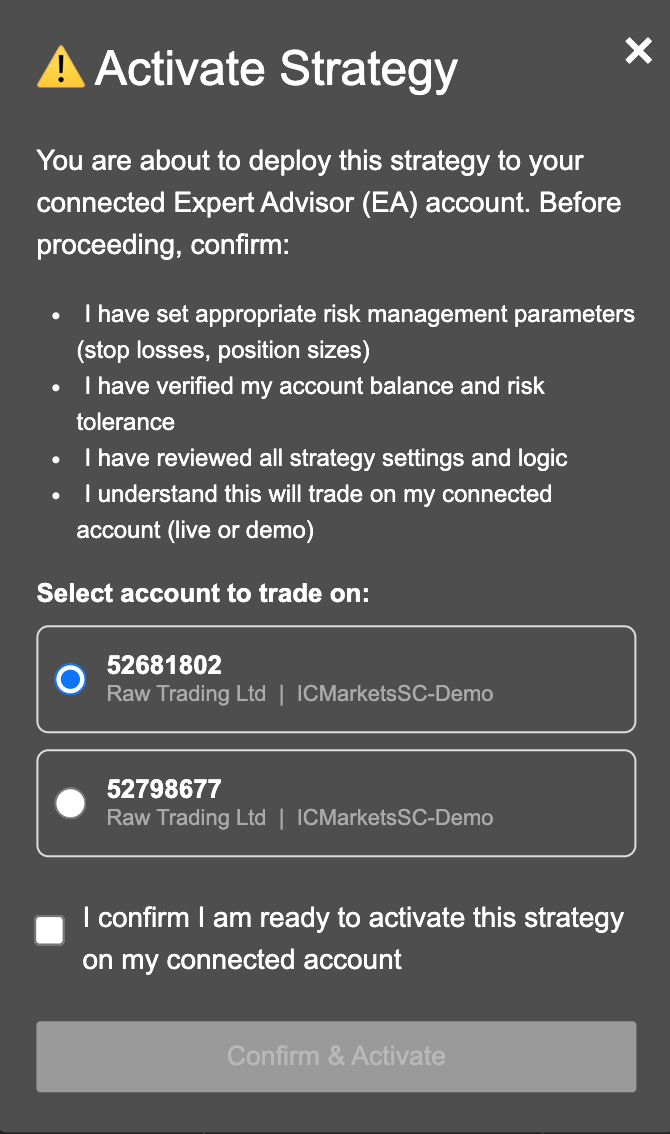
The Activate Strategy popup appears with two sections:
Risk confirmation checklist:
- I have set appropriate risk management parameters (stop losses, position sizes)
- I have verified my account balance and risk tolerance
- I have reviewed all strategy settings and logic
- I understand this will trade on my connected account (live or demo)
Account selector: All connected MT5 accounts are listed as selectable options, each showing the account number, broker name, and server. Select the account this strategy should trade on. The strategy will be bound exclusively to this account for its entire lifetime — signals are only sent to the selected account number.
This allows you to:
- Run the same strategy on a demo account first, then restart it on a live account
- Run different strategies on different brokers simultaneously
- Maintain a clear separation between demo and live execution — all managed centrally from Strateda
- Once an account is selected and the checkbox is confirmed, click Confirm & Activate.
- The play button turns green and the strategy header in the Execution Log shows the bound account number and magic number.
To stop a live strategy:
- Click the green play button on the running strategy's row.
- The strategy stops immediately. All open positions for this strategy are automatically closed — the EA sends a close command for any open trade belonging to this strategy.
Each strategy enforces a maximum of one open position at a time. Stopping a strategy will close that one position if it exists.
To run the strategy on a different account, stop the strategy and start it again — the account selector appears fresh and you can choose a different account. Stopping closes any open position on the previously bound account before the new account binding takes effect.
What you see
Once a strategy is live, monitor it from the Strategy Execution Log. Every trade event is recorded there — signal generation, order execution, position open/close, and strategy start/stop actions.
In the Stored Strategy List:
- Green play button — strategy is currently live and running
- Gray play button — strategy is saved but not active
Live strategies are region-scoped. A strategy running on EU Central appears as not running when you switch the navbar to US East — it is still active, just on the other server. Always confirm the navbar region matches the region the strategy was started in before concluding a strategy has stopped unexpectedly.
In MT5, trades appear in the Trade tab as they execute. The EA logs connection status and signal activity in the Experts tab.
How to interpret it
Healthy operation
A properly running live strategy shows:
- Play button is green in the Stored Strategy List
- The EA shows Connected in the MT5 Experts tab
- Signals appear in the Strategy Execution Log and are confirmed as executed within seconds
- Fill prices are close to the signal price
Built-in risk protection
The live execution system includes automatic protections:
Emergency stop loss — If your strategy does not include a stop loss, the EA automatically calculates and applies one. No trade ever runs without a stop loss.
Position size capping — The EA enforces a maximum position size relative to your account. Oversized requests are reduced automatically.
Duplicate trade prevention — Each strategy position is tracked by a unique identifier. Duplicate open signals are detected and skipped. One strategy holds at most one position at a time.
Multiple EA redundancy — If your plan supports multiple EA connections, connecting two EAs from the same account improves signal pickup reliability. Both EAs poll Strateda independently, so whichever polls first picks up a pending signal. This reduces average signal latency and provides a fallback if one EA instance is momentarily busy. See Expert Advisor Setup for configuration guidance.
Automatic trade recovery — If a signal was generated but not executed due to a timeout or disconnection, the system retries within the same candle period. On an M1 strategy this means a maximum retry window of 1 minute. On M30 the window is 30 minutes. Signals that cannot be executed within their candle period are discarded — the market has moved on and the entry is no longer valid.
Orphaned trade cleanup — If a strategy process stops unexpectedly, any open positions are automatically detected and closed.
Automatic process recovery — If a strategy process fails, the platform detects and restarts it within seconds, validating state on startup.
Temporary disconnections
If the EA temporarily loses connection to Strateda:
- Signals within one candle period — detected on reconnect and executed automatically
- Signals older than one candle period — discarded as stale (price has moved too far from the intended entry)
- Open positions during disconnection — protected by stop loss and take profit set on the MT5 order, which execute broker-side regardless of connection status
Before deploying
Live trading involves real capital. Before going live:
- Validate thoroughly — Run standard and MT5 backtests. Run Walk-Forward Optimization if available on your plan. Review worst-case scenarios via Monte Carlo.
- Test on demo first — Use your broker's demo account to confirm live execution matches backtest expectations before using real capital.
- Start with small sizing — Verify execution quality before scaling up position sizes.
- Keep MT5 running — The EA must be connected for signals to execute. Use a VPS for 24/7 operation. See VPS Setup and Server Selection.
- Set drawdown limits — If live drawdown exceeds 2× the maximum OOS drawdown from your WFO windows, pause the strategy and investigate.
- Re-optimize periodically — Re-optimize parameters on recent data to account for changing market conditions. Recommended frequency: monthly for M15/M30, quarterly for H1, semi-annually for H4/D1.
Example
A trader on the Pro plan deploys a DEMA/EMA crossover on EURCHF M30:
- Strategy is validated with standard backtesting, MT5 backtesting, and WFO (6 of 7 OOS windows profitable).
- They click play on the strategy in the Stored Strategy List. The Activate Strategy popup appears showing two connected accounts — both ICMarkets demo accounts. They select account 52681802 for the initial demo validation run.
- After two weeks of satisfactory demo results, they stop the strategy (position closes automatically), click play again, and this time select their live account. The strategy is now bound to the live account and resumes from the next signal.
- The play button turns green. Over the next 48 hours, three signals fire — all confirmed in the Strategy Execution Log with fill prices within 0.2 pips of the signal price.
- After one month, they review performance in the TCA dashboard.